Importing memories from Google Drive
How to bring travel photos and videos from Google Drive into Galmund, how location and date are filled in, and what access Galmund gets.
Last reviewed: 2026-10-07
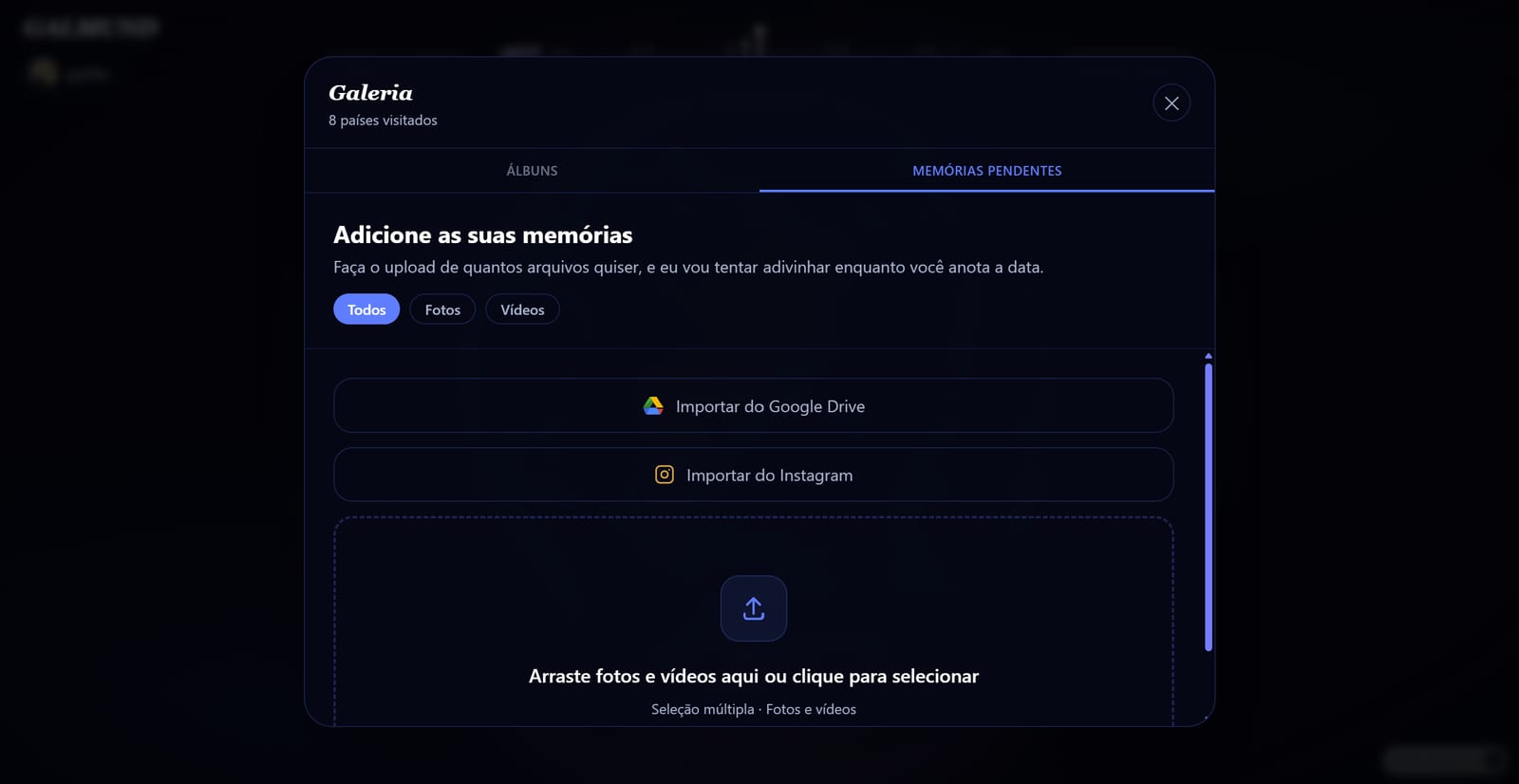
If your travel photos live in Google Drive, you don't need to download them first. Pick them in Drive and they go straight to your memory queue, with location and date already filled in when possible.
How to import
- Open the upload panel (or the Gallery) and tap Import from Google Drive.
- Tap Pick from Google Drive. A Google window asks you to choose your account and allow access.
- In Google's picker, browse your folders and select the photos and videos you want. You can pick many at once.
- Confirm. The files go to your memory queue, where Galmund works out where each one was taken.
How location and date are filled in
Each file shows a status in the queue:
- GPS detected: the photo had location data, so its place is already set.
- AI identified it: there was no location data, and Galmund recognized the place from the image itself.
- Location pending: Galmund couldn't tell. Search for the place yourself before publishing.
The date comes from Google Drive. For photos that were uploaded to Drive long after the trip, it can be the upload date, so it's worth a quick check.
Review each memory, adjust what you need, and publish. See Uploading your first memory for how the queue works.
What access Galmund gets
Galmund asks Google only for the files you pick. It can't see the rest of your Drive, and access ends with your session. If you want to remove Galmund from your Google account anyway, go to your Google account settings, under third-party connections.
On your phone
In the Galmund app, Import from Google Drive opens galmund.com in your phone's browser, already signed in, and the Drive picker opens on its own. Each file shows its progress while it uploads. When it's done, tap to go back to the app: the files are waiting in your memory queue.
💡 Each photo or video can be up to 200 MB on Free and 2 GB on Galmund+ and Member, and the import counts toward your plan's storage. See Upgrading your plan.
Frequently asked questions
Can Galmund see everything in my Google Drive?
No. Galmund only receives the files you pick in Google's own picker. It can't browse your Drive or open anything else, and it doesn't keep permanent access to your account.
Will importing the same photo twice create a duplicate?
No. Files that are already in your memory queue or already published are skipped, and Galmund tells you how many were left out.
Why is the date of an imported memory wrong?
Galmund uses the date Google Drive has for the file, which can be the day it was uploaded to Drive rather than the day the photo was taken. Check the date in the memory queue before publishing and fix it there if needed.
Is there a limit on how many files I can import?
You can pick as many as you like, as long as each file fits your plan (up to 200 MB on Free, 2 GB on Galmund+ and Member) and everything fits in your plan's storage. If you import a very large batch at once, Galmund may ask you to wait a few minutes before the next one.
Can I import from Google Drive on my phone?
Yes. In the Galmund app, the import opens galmund.com in your phone's browser, already signed in, because Google doesn't allow its sign-in inside apps. When the files are uploaded, go back to the app and they're in your memory queue.