The schedule
Build a day-by-day timeline for your trip: drag places, flights and stays into each day.
Last reviewed: 2026-09-13
The Schedule tab turns your list of places into a real day-by-day plan.
Opening the schedule
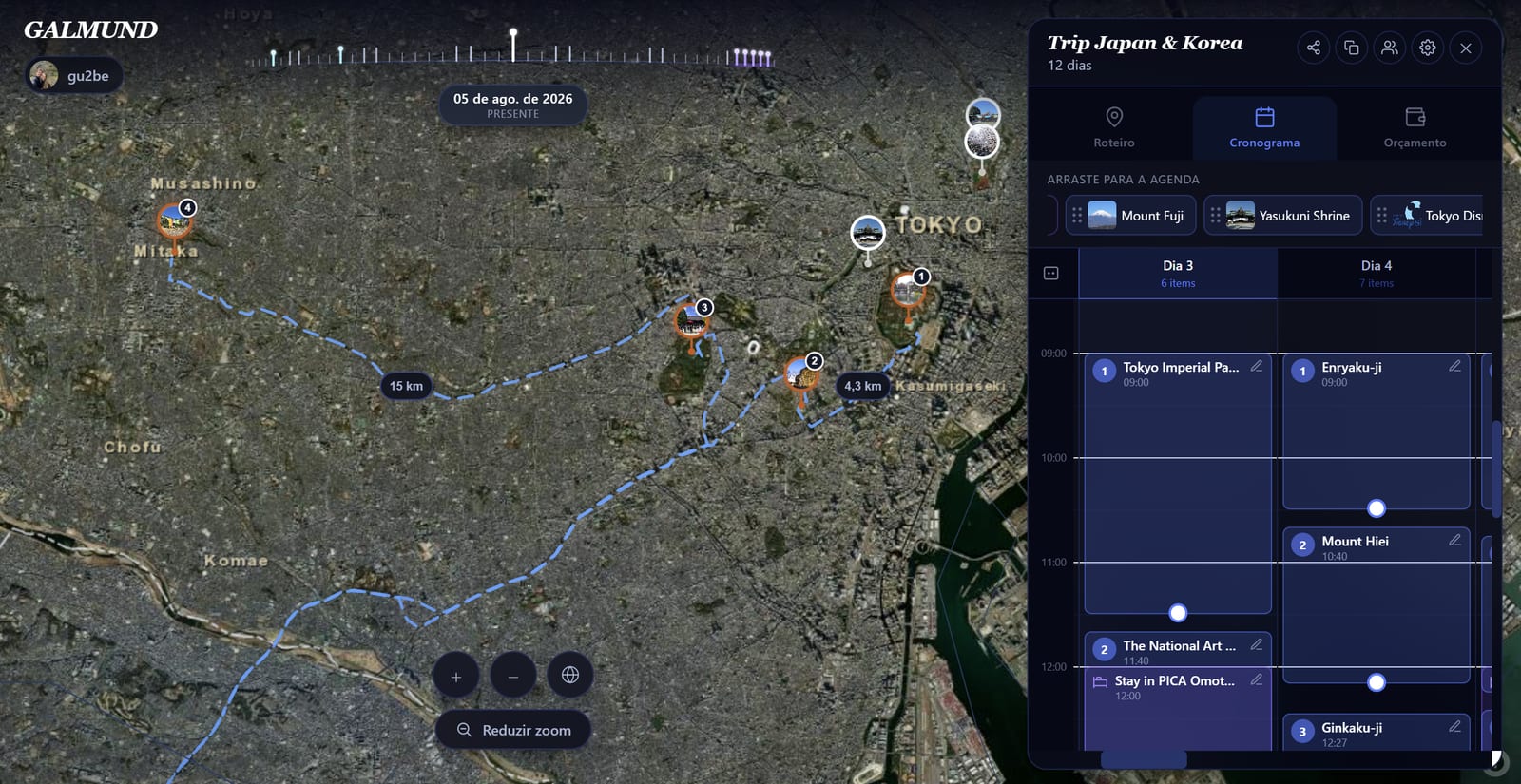
In the Trip Planner, click the Schedule tab at the top. You'll see one column per day of your trip, side by side. Scroll horizontally to see the rest.
The group bar
Above the day columns sits the group bar, a colored strip per stop (city) on your trip, showing which day to which day you're there. Drag a bar to move that whole stop to different dates, or pull its edge to stretch or shrink how many days it covers, no need to edit the stop from the Itinerary tab. With 3 or more stops overlapping in time, the bar collapses and you expand it on demand.
That same per-stop color shows up on the day's events and map pins, so you can tell at a glance which city each item on the schedule belongs to.
What appears in the schedule
The schedule can hold three types of items:
- Places: attractions and restaurants from your itinerary
- Transportation: flight, bus, train, car, and other modes, added between itinerary stops
- Stays: hotel check-in/check-out from the Stays tab
Dragging places from the palette
On the right side of the Schedule view, you'll see a palette of your unscheduled places and accommodation. Drag any item from the palette onto a day column to schedule it. On a touchscreen, press and drag the same way; both dragging and resizing an event work with touch, not just a mouse.
Setting times
Click any scheduled item to open its detail. Set:
- Start time: when you plan to be there
- Duration: how long you'll spend
- Location: where exactly, if it's different from the place's default address
- Attachments: tickets, confirmations, or any file worth keeping with the event
- Notes: reminders or instructions (parking, tickets, etc.)
- Cost: for budget tracking; each event keeps its own cost and notes, even if you've visited the same place more than once
Organizing the schedule automatically
Instead of dragging every item by hand, open the auto-organize wizard: confirm the order your itinerary is in (or let it reorganize by shortest distance first), confirm how many days the trip has, and Galmund fills in every day for you, accounting for how long each type of place typically takes and the real travel distance between stops.
💡 The auto-organizer never schedules anything before 3pm on day 1, since check-in usually runs until 2pm and you'll want time to settle in. Not happy with the result? Undo puts the schedule back the way it was before.
Adding and removing days
- Click + at the top-left or top-right of the day tabs to add a day
- Click the day number and look for the remove option to delete an empty day
The route on the globe
When the Schedule is active, Galmund draws a route line on the globe connecting your stops in order for each day. The line follows roads where possible, or a straight arc for flights and long distances.
💡 Scroll to a specific day or click the group bar to jump straight to it. The globe follows along, rotating to the area where that day's activities are.
Frequently asked questions
How do I add or copy a day in my schedule?
To add a day, scroll to the end of your days in the Schedule tab and click the + button (or use the button at the start to add a day at the beginning). Copying an entire day isn't supported yet, but you can drag individual items between days instead.
Can I set specific times for each activity?
Yes. Tap any item in the schedule to set a start time and duration. Items are sorted by time within each day.
What's the difference between a place in the Itinerary and one in the Schedule?
The itinerary is your list of places to visit (unscheduled). The schedule assigns each place to a specific day and time. You can have places in your itinerary that aren't yet scheduled.
Is there a way to fill in the schedule automatically instead of dragging every item?
Yes: the auto-organize wizard. Confirm the order of your itinerary (or let it reorganize by shortest distance), confirm how many days the trip has, and it fills every day for you. It won't schedule anything before 3pm on day 1, since check-in typically runs until 2pm. If it doesn't like the result, Undo puts everything back the way it was.
Can two visits to the same place have different costs and notes?
Yes. Each scheduled event now tracks its own cost and notes. They used to be shared across every visit to the same place, so editing one no longer changes the others.