Stays tab
See recommended hotels near your destination, search by name, and add your stays to the trip schedule.
Last reviewed: 2026-09-13
The Stays tab is where you record your accommodation for each trip.
Seeing recommended hotels
Open the tab and a carousel of hotels near your destination shows up automatically, no typing required. Scroll through it, or type a hotel name in the search field to filter the carousel down to it.
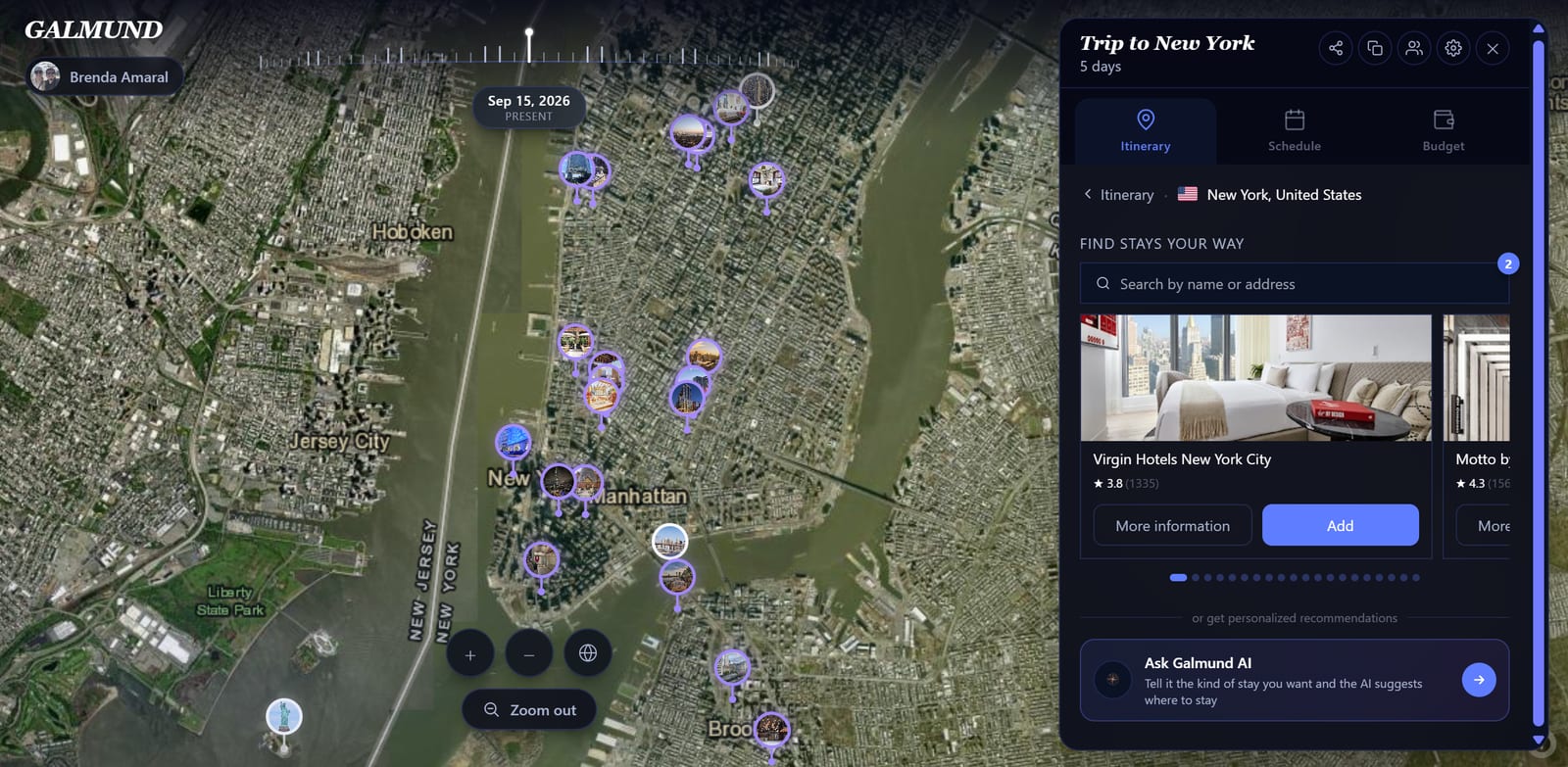
💡 Search by the hotel's name (e.g. "Hotel Arts Barcelona") if you already know where you're staying. With no search at all, the carousel already shows suggestions near your trip's selected city.
Hotel cards
Each result shows:
- A satellite map thumbnail of the location
- The hotel name and address
- Distance from your trip's main destination
- Star rating (when available)
Adding a stay
Click Add accommodation on the hotel card. The stay is added to your trip and appears in the Schedule on the check-in day.
Setting check-in and check-out
After adding, open the Schedule tab. Find the stay block and drag it to the correct day, or tap it to edit the check-in time and number of nights.
💡 Editing a stay also shows a City or address field below the hotel name. Use it to correct the location without changing the hotel's name.
Hotel pins on the globe
Added stays appear as square pins (purple) on the globe, distinct from the round memory pins and circular place pins. They're visible when you view the Schedule tab.
Booking externally
Galmund helps you plan where to stay, but the actual booking happens on your preferred platform. Use the hotel name from Galmund to search on Booking.com, Hotels.com, or Airbnb.
Frequently asked questions
Where do hotel search results come from?
Galmund searches OpenStreetMap data for accommodation near your destination. Search by the hotel name for the best results.
Can I book a hotel directly from Galmund?
Not yet. Galmund shows you hotel information to help you plan, but bookings are made on external sites (Booking.com, hotels.com, etc.). A direct booking integration is planned.
The hotel I want doesn't appear. What should I do?
Search by the hotel's exact name. If it still doesn't appear, you can add any location as a manual entry by typing the hotel name and confirming the address from the map result.
Can I add check-in and check-out dates?
Yes. After adding a hotel, go to the Schedule tab where you can set the check-in day and duration of your stay.
The hotel's address is wrong. Can I fix it without removing and re-adding it?
Yes. Open the stay to edit it and a "City or address" field appears below the hotel name. Search and pick the correct location there. It updates the map position without touching the hotel's name.