Sharing your itinerary: invite collaborators
Invite friends or travel companions to view and edit your trip together in real time.
Last reviewed: 2026-06-27
Galmund lets you plan trips together. Invite anyone by email and they can add places, edit the schedule, and track the budget alongside you.
Opening the invite panel
Inside your trip, click the share icon (or "Adicionar pessoas") button in the trip header. The members panel slides open.
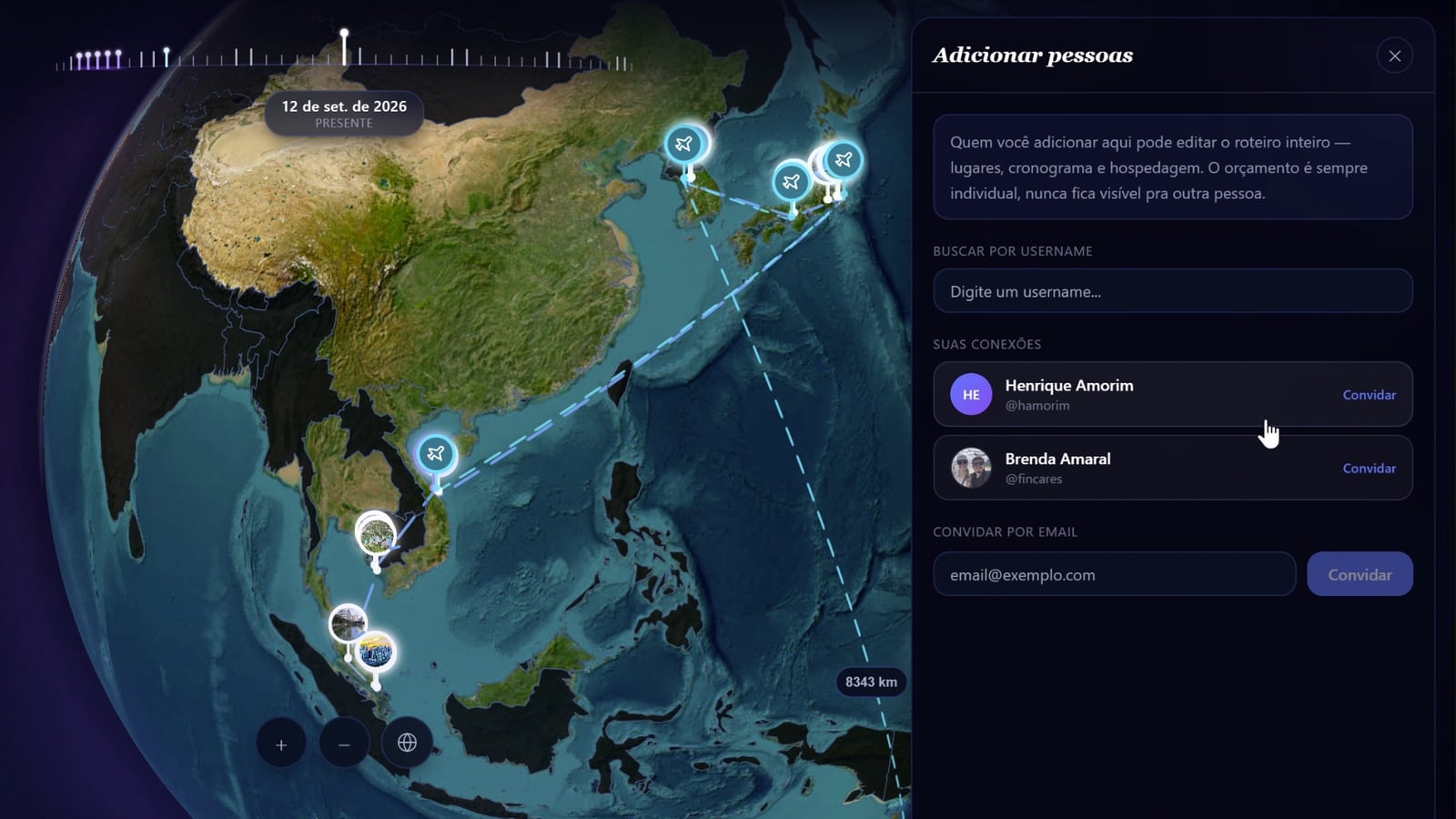
Inviting someone
- Type the person's email address in the input field
- Click Invite: Galmund sends them an invitation email with a link
- The invite is valid for 7 days. You can resend it if needed.
What happens when they accept
Once the person clicks the link in their email and logs in to Galmund:
- The trip appears in their My Trips list
- They can view and edit all itinerary items: places, flights, accommodation, and the schedule
- Their changes appear in real time for all collaborators
Collaborator permissions
| Action | Owner | Collaborator |
|---|---|---|
| Add / edit places | ✅ | ✅ |
| Add / edit flights & stays | ✅ | ✅ |
| Edit the schedule | ✅ | ✅ |
| Invite others | ✅ | ❌ |
| Delete the trip | ✅ | ❌ |
| Remove collaborators | ✅ | ❌ |
💡 The budget is personal: each person tracks their own costs. Collaboration is for the itinerary, not the finances.
Frequently asked questions
Does the invited person need a Galmund account?
Yes. The invite is sent to an email address. If the person doesn't have an account, they'll be prompted to create one before accepting. The invite link is valid for 7 days.
Can collaborators delete the trip?
No. Only the trip owner can delete the trip. Collaborators can add, edit, and remove itinerary items, but cannot delete the trip itself or remove other members.
How many collaborators can I invite?
There is no hard limit on the number of collaborators per trip on the current plan.
Can I remove a collaborator?
Yes. Open the trip settings (⚙) and go to the members panel. Click the × next to a collaborator's name to remove them. They will no longer see the trip.