Editing a memory
Update the label, date, location, or visibility of any memory after it has been uploaded.
Last reviewed: 2026-06-27
You can update any memory at any time: the label, date, location, and visibility are all editable.
Opening a memory
Click on any memory pin on the globe to open the memory modal. It shows the photo or video, the location, the date, and the label.
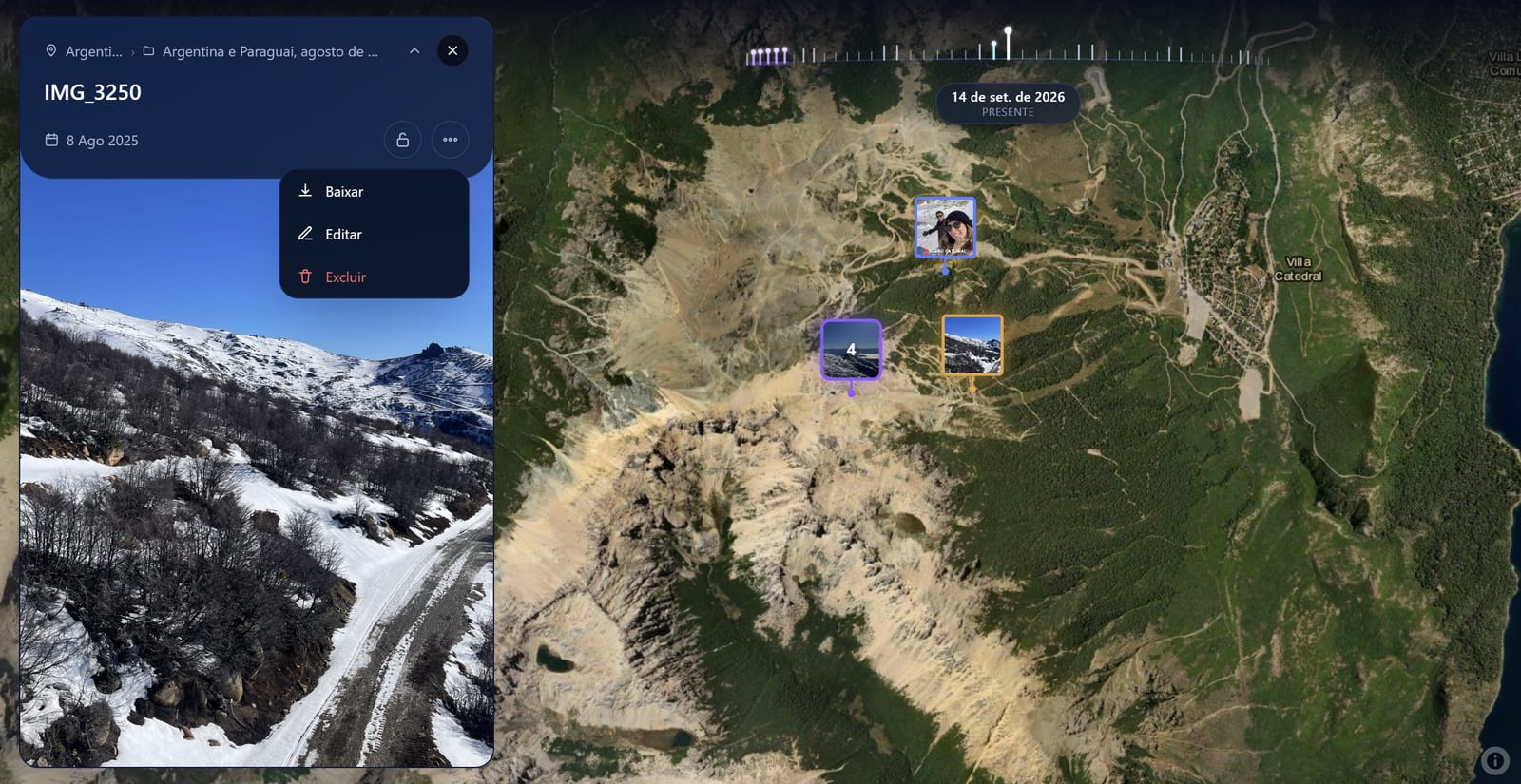
What you can edit
Label
The title of the memory, shown on the pin tooltip and on your public profile. Click the label field to edit it inline.
Date
The date shown on the memory. By default this comes from the file's creation date. Click the date field to change it.
Location
The place where the memory was taken. Click the location field to search for a new place by name. The pin moves on the globe as soon as you confirm.
Visibility
Toggle between Public and Private. Public memories are visible on your profile page (if your profile is discoverable). Private memories are only visible to you.
Saving changes
Changes are saved automatically as you type. There is no separate save button. Close the modal when you're done.
💡 If you have many memories in the same place with wrong dates, you can edit them one by one from the globe. Zoom into the area, click each pin, and update the date directly.
Frequently asked questions
Can I change the location of a memory?
Yes. Open the memory and click the location field to search for a new place. The pin will move to the new coordinates on the globe.
Can I replace the photo or video file?
Currently you cannot replace the media file itself: only its metadata (label, date, location, visibility). To replace the file, delete the memory and upload the new version.
Will editing a memory affect my visited countries count?
If you move a memory to a different country, the old country may no longer be highlighted (if it was your only memory there), and the new country becomes highlighted.