Adding attractions to your itinerary
Discover recommended attractions near your destination and add them to your trip, or search for any specific place by name.
Last reviewed: 2026-09-13
The Attractions tab is where you build the landmarks side of your itinerary: browse recommendations, search for specific spots, and add them to your trip.
Browsing recommended attractions
Inside a stop on your trip, the Attractions tab loads a carousel of recommended attractions nearby, sourced from Google Places. Scroll horizontally through the cards to explore them.
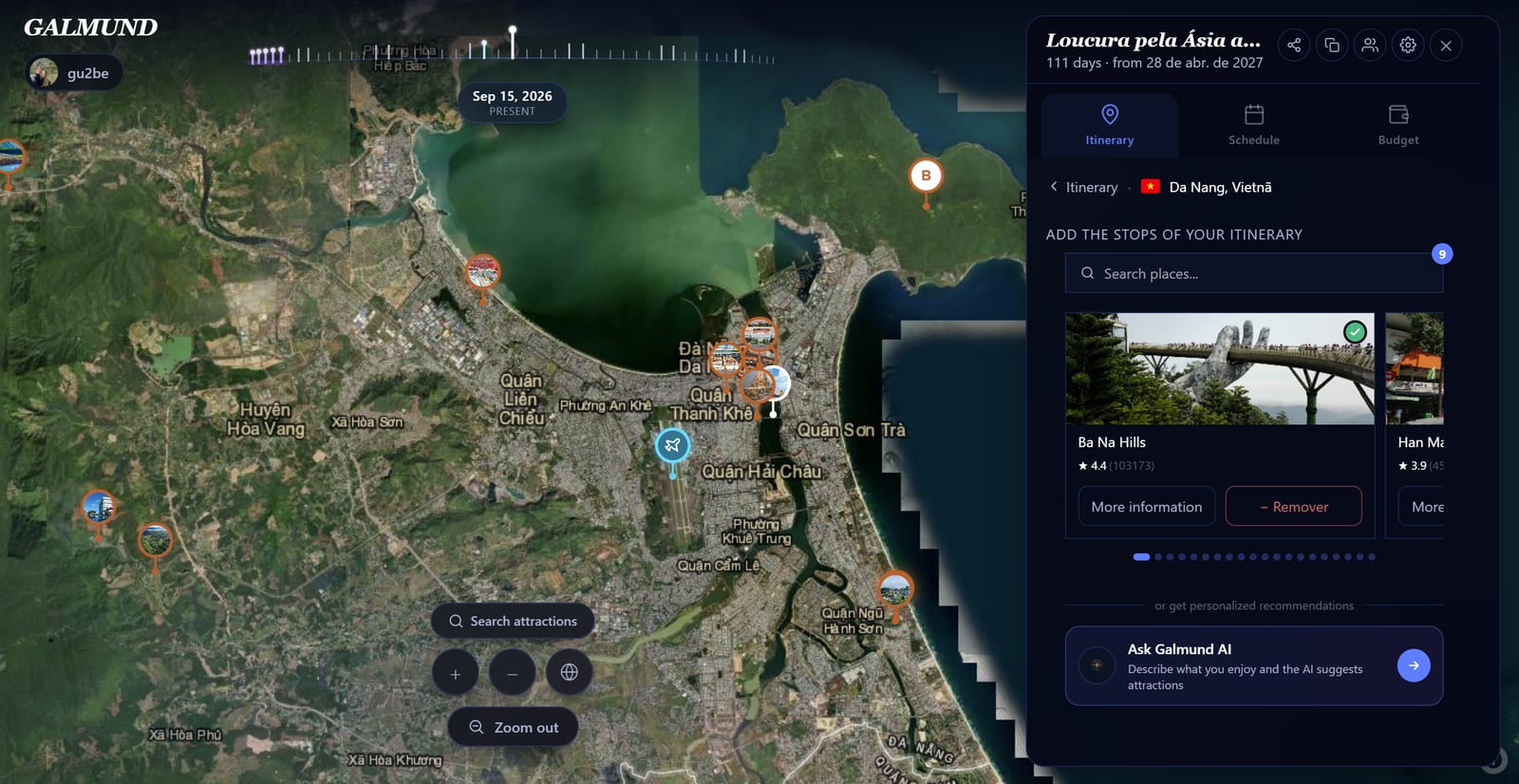
Each card shows:
- A photo of the place
- The name and a short description
- A More info button
- An Add / Remove toggle button
💡 After panning the map or zooming into another part of the city, a Load places in this area button shows up if most of what's already loaded is now outside the visible area: click it to search centered there, without losing what you already had.
Getting more information
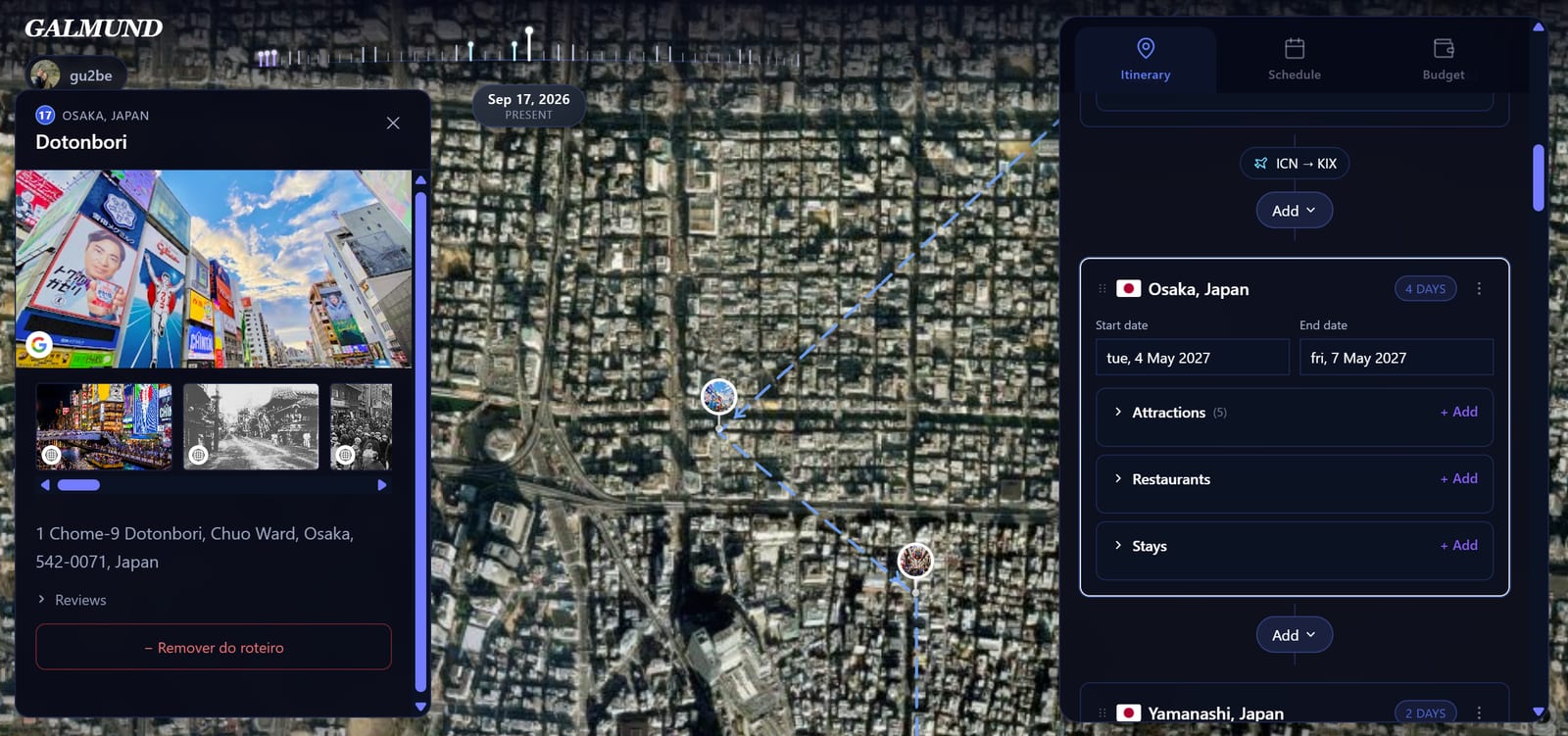
Click More info on any card to open the place detail panel on the left of the globe. The panel shows:
- The main image and a gallery of photos
- A full description
- Community ratings (when available)
- Options to add or remove from your itinerary
Clicking a carousel card or an already-added item zooms the globe to its location first; clicking the same item again (or clicking it once it's already zoomed in) opens the detail panel.
Searching for a specific attraction
Use the search field at the top of the Attractions tab to find any place by name. A badge next to the field shows how many searches you have left today on your plan. Results come from OpenStreetMap, restricted to the stop's city; if nothing turns up, Galmund automatically retries via Google Places.
💡 Searching for a specific point of interest (a museum, a market, a landmark) adds that exact spot as its own stop in your itinerary, not the whole city. If the place turns out to be a small cluster of recognized spots next to each other, adding it adds the others nearby too, so you don't have to search for each one individually.
Asking Galmund AI
Below the carousel, a card invites you to ask Galmund AI directly for recommendations. See its own article for how that works and each plan's daily quota.
Adding an attraction to the itinerary
Click + Add on any card (in the carousel or in the detail panel) to add it to your trip. It appears in the Itinerary list, inside the matching stop. Click − Remove to remove it.
The itinerary list, by stop
Attractions you've added appear grouped by stop (each city that's part of the trip), not in one flat list. Within a stop, you can:
- Drag and drop to reorder manually within that stop
- Click Reorganize (shows up with 3 or more attractions in the same stop) to automatically sort by shortest distance between them
- Click any item to zoom the globe to that location, then click again to open its detail
💡 The globe shows a live preview pin for whichever place is visible in the carousel as you scroll, so you always know where each attraction is on the map.
Frequently asked questions
Where do the recommended attractions come from?
From Google Places, filled in by OpenStreetMap when a detail is missing (phone, website, hours). If the Google search fails (daily limit reached, instability), Galmund falls back to Wikipedia automatically. You won't notice the switch, other than possibly less detail in the results.
Can I add a hotel, restaurant, or specific address from the Attractions tab?
Hotels and restaurants have their own tabs: use Stays or Restaurants for those. From the Attractions tab's search, you can find any landmark or address by name; if nothing turns up, Galmund automatically retries via Google Places.
How do I remove an attraction I added?
Find it in the itinerary list, inside the matching stop, and click the ✕ button, or open the place detail panel and click 'Remove from itinerary'.
What is the "Load places in this area" button?
It shows up when fewer than half of the already-loaded attractions are inside the map's visible area, usually after you pan or zoom to another part of the city. Click it to search for attractions centered exactly on what you're looking at, without losing what was already loaded.
I added an attraction and my itinerary shows more than what I searched for. Is that a bug?
Depends. A specific point of interest (like a museum) should become its own stop, separate from the city. If the whole city gets added instead, it's worth reporting to support. But if a small cluster (a market or a historic complex) brought in a few extra recognized places right next to it, that's intentional: you don't have to add each one individually.